
JLookUp :: a Japanese↔English dictionary program
The home of JLookUp since 2004.07.21
You can get 1.0.7.5 here!
You can try out the JLookUp2 alpha here!
The home of JLookUp since 2004.07.21
You can get 1.0.7.5 here!
You can try out the JLookUp2 alpha here!
Using JLookUp 2
JLookUp 2.0 is currently in alpha testing, but it has become large enough that it warrents its own page. This is the latest documentation on using JLookUp 2.0.The main menu

The main menu is broken down as follows:
- JLookUp2
- Settings
This brings up the settings window. - Quit
This quits JLookUp, saving your settings to "preferences.ini".
- Settings
- Dictionaries
- Add dictionary
This opens a dialog box that allows you to add a new dictionary for immediate use. Note that JLookUp currently only supports the "standard" EDICT format, not the EDICT2 or XML formats. For more information on EDICT, click here. - Manage dictionaries
This opens a dialog box that allows you to remove any currently-added dictionaries. Note that this does not physically delete them from disk; rather, it merely updates the configuration to exclude them.
- Add dictionary
- View
- Character results
This toggles the display of the character (kanji) results. - Search settings
This toggles the display of the entire suite of search settings. - Word results
This toggles the display of the word results.
- Character results
- Help
- About
This shows the about dialog box.
- About
Searching

Searching for a word is fairly straightforward. In essence, you type your text into the search box and then either press "enter" or click on the "Search" button. Any results will be shown in the word results table, and any kanji there will be displayed in the character results table.
JLookUp has a built-in "input method editor" (or "IME") for allowing you to type Japanese kana using a normal English keyboard. This works in a similar manner to "real" IMEs, except that this one only allows for kana input. You may toggle the IME by pressing "CapsLock" or "F2", or by clicking on the "IME" button. When the IME button is green, it is active; when it is gray, it is inactive.
Search settings
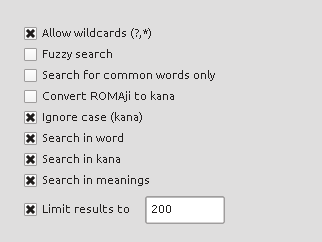
These settings control how a search is performed. The defaults are pretty good, but you can change them if you'd like.
The available settings are:
- Allow wildcards (?,*)
-
This only applies to Japanese searches.
This enables the somewhat-standard use of "?" and "*" as wildcards. Note that these are not regular expressions. Here, "?" represents "any one character", and "*" represents "zero or more characters".
For example, to search for words that start with "か" and end in "い", you would type: "か*い". This includes the trivial case of "かい"; to require at least one letter between them, you would type "か?*い". - Fuzzy search
-
This only applies to Japanese searches.
This enables a single search to search many different "interpretations" of the search text. For examle, if the search text ended in "した". then both that and "する" would be searched. There are a lot of fuzzy-search rules, so this can be very helpful when looking up words that have been heard but not read. - Search for common words only
- This limits the result set to only those words that have been marked by the dictionary as "common". This helps to limit the results to something that is more likely to be correct, as opposed to an uncommon or even archaic usage.
- Convert ROMAji to kana
-
This essentially does the work of the IME after a search is kicked off.
If this is enabled, the search text will be converted to kana (if possible).
That text will then be used for the search.
This is useful if you are not very well versed in kana, allowing "Roman letters" ("ROMAji") to be used instead of kana. - Ignore case (kana)
-
This makes all searches case-insensitive (in the case of ROMAji), or kana-insensitive in the case of kana.
It is unlikely that you would want to match case or kana when attempting to look up the meaning of a word.
It is best to just leave this on. - Search in word
- Another setting to just leave on, this allows JLookUp to search inside the Japanese word (including kanji). It's not much use to not look for results in the words.
- Search in kana
- Another setting to just leave on, this allows JLookUp to search inside the Japanese reading (the kana). It's not much use to not look for results in the kana.
- Search in meanings
-
This allows JLookUp to search inside the meanings of the words.
This must be on in order to search from English to Japanese.
Note that this is a bit more intense than Japanese-to-English searches. However, since it is no longer the early 2000s, the intensity difference is probably negligible. - Limit results to XXX
- This places a hard limit on the number of results that can come back from a search. Too many results can be hard to navigate; plus, they cost more RAM to display.
Parts of speech
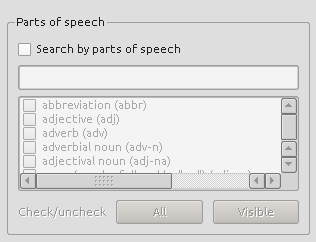
This allows you to limit the results to particular parts of speech (as defined by the dictionary). There are a considerable number of available parts of speech, so there is a search box to help narrow them down.
If nothing is checked, then it means "search all parts of speech".
Dictionaries
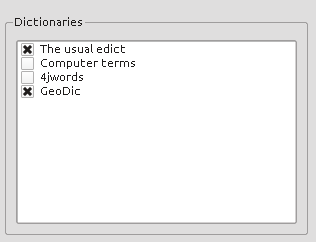
This allows you to limit the results to particular sets of dictionaries. In practice, I usually use only the standard EDICT and the computer terms, but this can be used to limit results to geographic terms, to to exclude larger dictionaries in order to speed up searches.
Word results
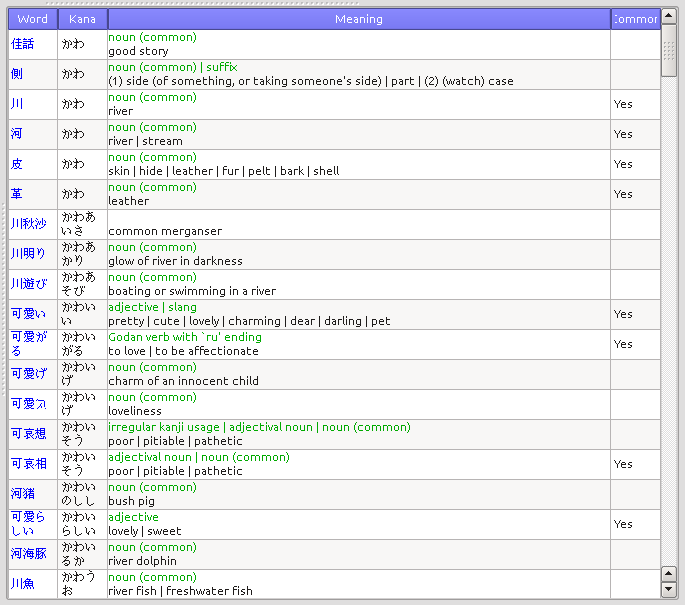
This is where the word results are displayed.
Right-click menu options:
- Search for these kanji
This searches for all of the kanji from the selected words. - —
- Copy
This copies everything about the current row. - Copy word
- Copy kana
- Copy meaning
- —
- Clear all entries
This removes all of the results in the table.
Kanji results
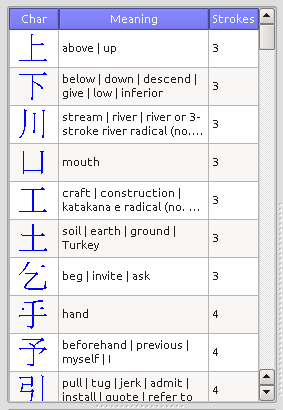
This is where the character results are displayed.
Right-click menu options:
- Search for words starting with this kanji
This searches for all of the words that start with this kanji. - Search for words with this kanji anywhere
This searches for all of the words that contain this kanji. - Search for words ending with this kanji
This searches for all of the words that end with this kanji. - —
- Search for similar kanji
This attempts to search for "similar" kanji. - Select this kanji's radicals
This selects only this kanji's radicals in the radical list below. - —
- Copy
This copies everything about the current row. - Copy character
- Copy on readings
- Copy kun readings
- Copy meaning
- —
- Clear all entries
This removes all of the results in the table.
Radical lookup
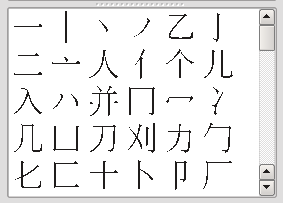
This allows you to search for kanji from "radicals", the little pieces that make them up. This list is not exhaustive; it comes from a file called RADKFILE.
To search for kanji, first select the radicals to use in the search. Then, right-click and choose "Search kanji with these radicals".
Right-click menu options:
- Search kanji with these radicals
This searches for kanji associated with all of the selected radicals. - —
- Clear selection
This clears out the selected radicals. - —
- Instant search
If this is enabled, then as soon as a radical is selected (or de-selected), a new kanji search will be issued. This helps with quickly trying to find a particular kanji.